iPhone / iPad
Host or display. The iPhone or iPad host also counts as one screen.
iPhone / iPad setup Screens Together
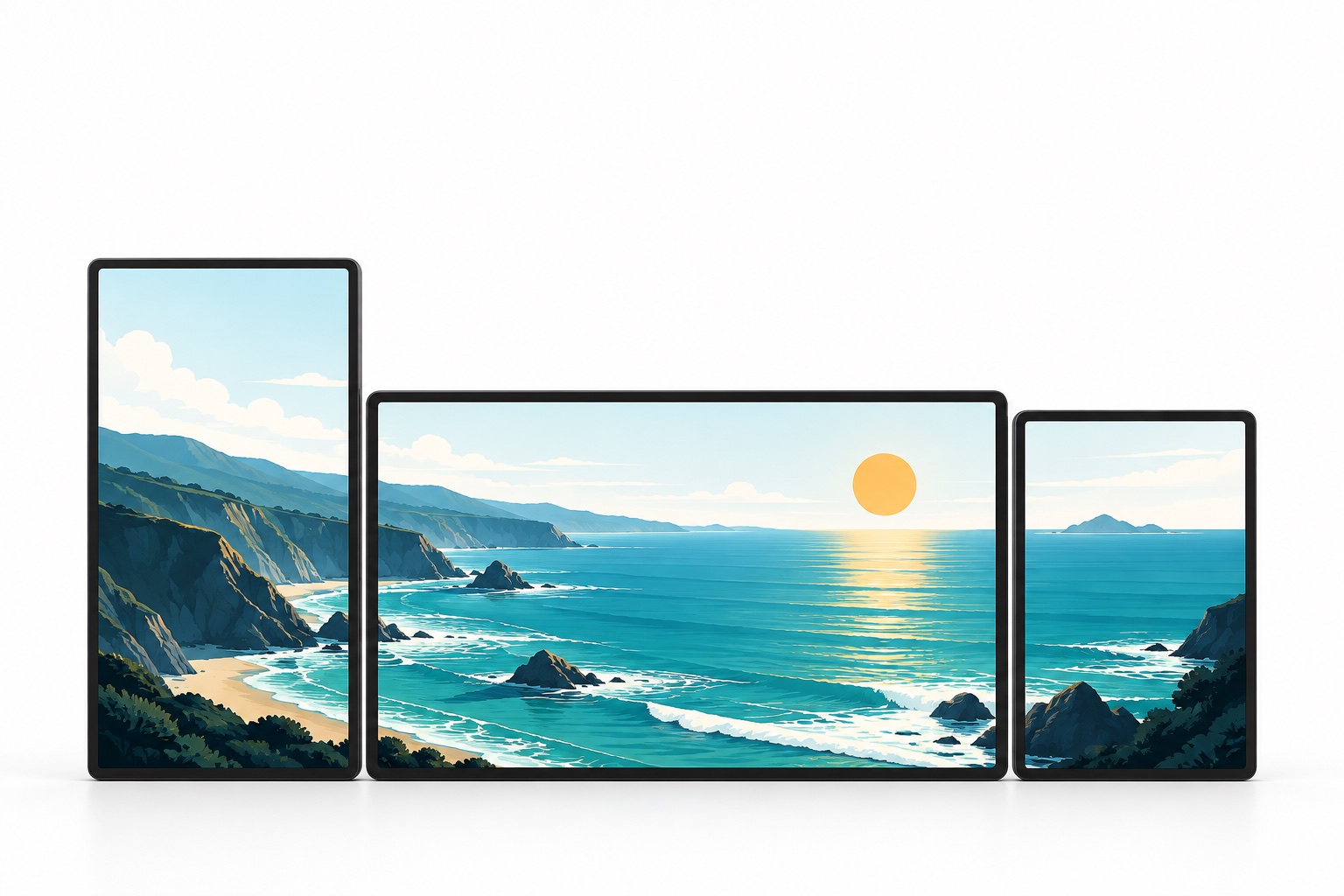
Video walls. Scrolling signs. Event displays.
Build a video wall or scrolling-text sign with nearby iPhone, iPad, Mac and Apple TV screens for events, exhibitions and temporary displays.
Conceptual screen arrangement, not a device-test photograph.
Choose scrolling text or a local video. Set the screen count and layout before creating a room.
Join the nearby room, approve displays, then assign each screen its position and orientation.
Calibrate gaps and crop offsets. Wait for video transfer to finish, then start playback.
Keep a controller in one window and join the room from other display windows. Assign a different part of the canvas to each, without moving a device.
Mac multi-window setup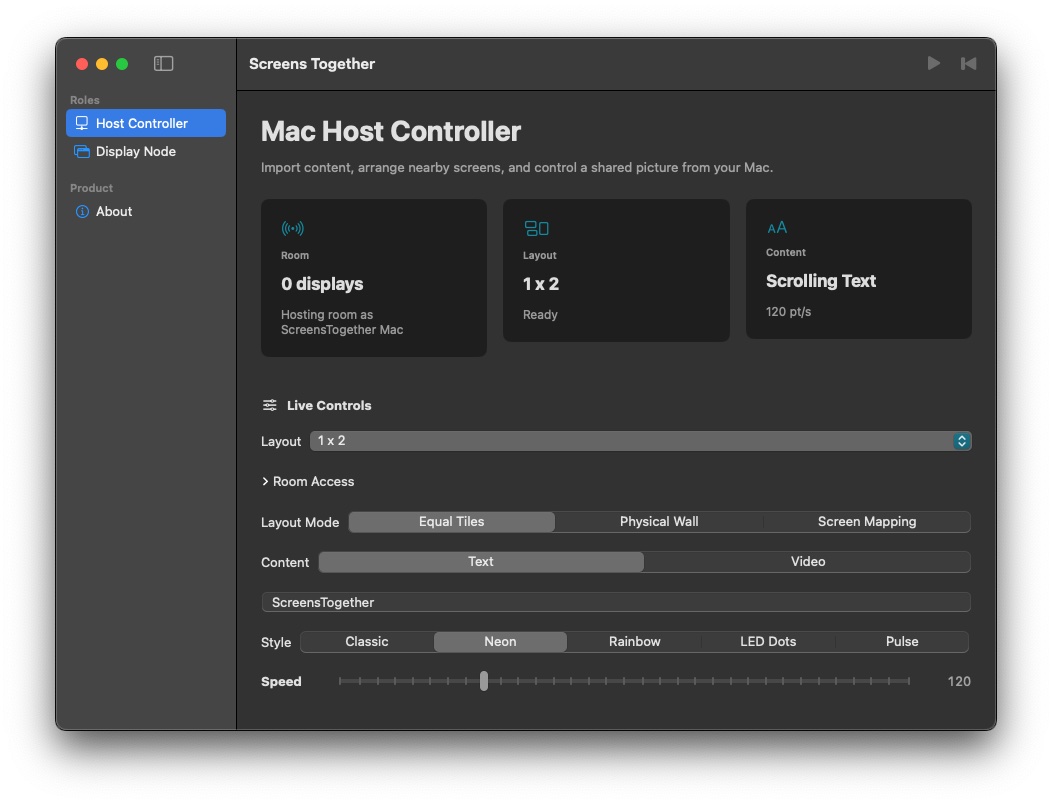
Host or display. The iPhone or iPad host also counts as one screen.
iPhone / iPad setupA separate controller, with each joined display window taking one screen position.
Mac multi-window setupA display receiver. Join a room hosted on iPhone, iPad, or Mac.
Apple TV setupLocal rooms require no account or cloud service. Install the app on each device, keep devices nearby, and allow Local Network access. The same local Wi-Fi network is recommended; guest-network client isolation can prevent discovery.
No. ScreensTogether splits the selected text or video into assigned screen regions. It does not mirror the whole desktop, other apps, or protected streaming services.
Playback is coordinated on a shared timeline, not guaranteed hardware frame lock. Timing depends on the devices, video, and network. Test and calibrate the actual setup before an event; layout limits are not a guarantee of tested simultaneous-device capacity.
Give them one picture to share.
 App Store listing
Free app. Check the App Store listing for current availability.